
This feature enables you to deploy an Annual Review process for faculty members at your institution.
It allows you to:
– Compile all research work completed during the selected period in a structured and centralized manner.
– Add supplementary comments: each faculty member can contextualize and/or highlight their achievements through a dedicated space, separate from declarative data.
– Track key indicators: an option makes it possible to include publication statistics in the evaluation report, with a breakdown by type.
Its objective is to facilitate the monitoring of research activities while clearly distinguishing factual data from qualitative enhancement elements.
⚠️ This feature involves several exchanges between the evaluation management team (DA) and faculty members (FAC), who complete and submit their report via Academ. Its use therefore requires that faculty members of the institution have access to Academ.
Set up the review process
An initial general configuration step is required to prepare the launch of evaluations.
Go to the main Reports menu on the left side of the screen > Annual Review > Configuration.
You will access a new menu that allows you to configure two essential elements to launch your reviews:
- Group configuration: define the different user groups that will participate in the workflow.
- Email configuration: set up the emails that will be sent to users throughout the review process.
Groups
Group configuration defines the roles of stakeholders in the review process. Group members receive notifications inviting them to comment on and/or validate the report at different stages.
Groups can be configured in two ways:
- Static: members are defined manually and remain the same from one evaluation to another.
Suitable for organizations where responsible persons do not change. - Dynamic: members are determined based on criteria (e.g., users with DA-type permission within a department) and automatically evolve depending on the faculty members/departments being evaluated.
ℹ️ Configuring a dynamic group relies on an SQL query. Our team can assist you with its implementation. Please contact us at support@rimaone.com
Default groups are provided to facilitate setup, but they can be modified or replaced according to your needs.
Two standard groups are available:
- FACULTY: Faculty members of the institution. The group is dynamically configured to include the selected faculty members when the evaluation process is launched.
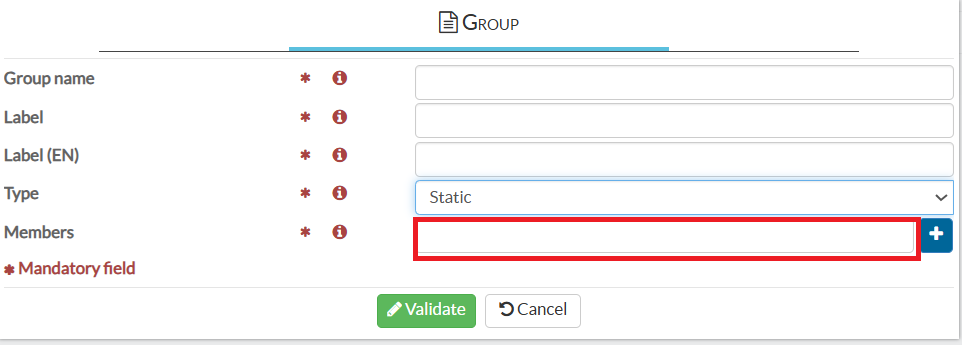
- RESP: Managers responsible for the evaluation. This group must be configured with the relevant users in your institution. Select users using the blue + icon to the right of the Members field.
Our team can also assist you in setting up a dynamic team if needed. Feel free to contact us.
Standard Emails
This step allows you to configure the emails automatically sent to stakeholders at the different stages of the review cycle.
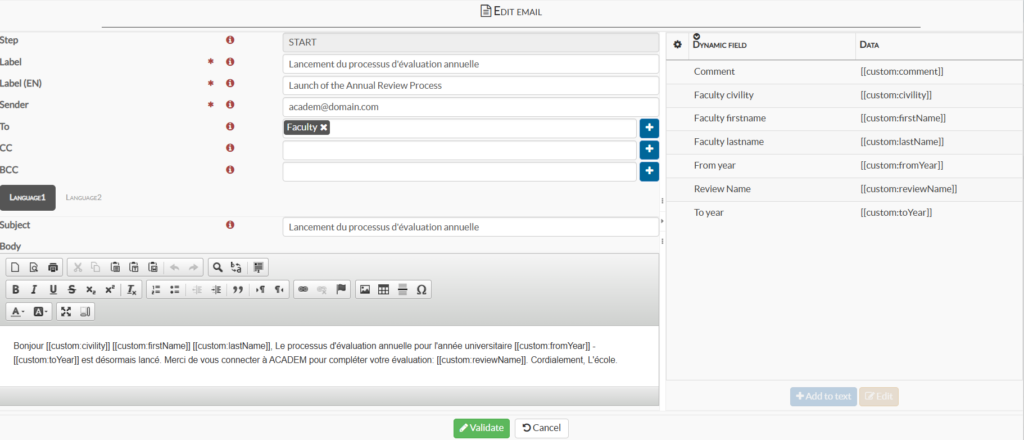
You can enable or disable the proposed templates and modify their content: subject line, message body, language, and insertion of dynamic variables (e.g., Faculty Firstname to automatically display the faculty member’s first name).
Each template must be associated with a status corresponding to its trigger:
- START: launch of the evaluation. The faculty member is informed that the process has begun and is invited to log in to their Academ space to complete their evaluation.
- SUBMITTED: the report is submitted by the faculty member. Managers are notified and invited to log in to Academ to review it.
- REVIEWED: the evaluation is validated. The faculty member is informed by email.
- REJECTED: the evaluation is rejected. The faculty member is invited to log back into their Academ space to correct and resubmit the report.
Once groups and emails are configured, you can launch one or several evaluations.
This configuration will remain valid for future evaluation processes and will not require modification unless you wish to adjust certain settings.
Launching and Monitoring Annual Reviews with a DA Role
An annual review can be initiated either by a manager from their DA space or by a faculty member from their own Academ’s space.
Launching Annual Evaluations
From the Reports menu > Annual Review > select “Annual Review” to launch and monitor one or several reviews.
Use the blue “Add” button at the bottom of the screen to create a new evaluation.
An add/edit window will open.
From the General tab, define the following settings:
- Evaluation name (e.g., Annual Review June 2026)
- Start and end year: the report follows the academic year dates defined at the institutional level.
For example, if the academic year begins in September, the report will start in September of the start year and end in August of the end year. - The report template used for the process.
By default, the only template available here is the Annual Review Report, but you may use other customized reports within this workflow. Contact our Customer Success team for any customization requests at support@rimaone.com - The status is set by default to START when the process is launched. It will be updated automatically at each stage.
- The “Display KPI” checkbox allows you to display, at the beginning of the report, the number of publications categorized by type.
This information enables faculty members to assess their achievements quantitatively. By selecting this first checkbox, you can then choose whether or not to display the detailed breakdown of these indicators.
From the Faculty tab: Select the faculty members to be evaluated.
Search/select faculty members from the list on the left and use the single blue arrow to add one or several faculty members to be evaluated simultaneously.
Use the filtering and grouping options to facilitate the selection of the faculty members you wish to include
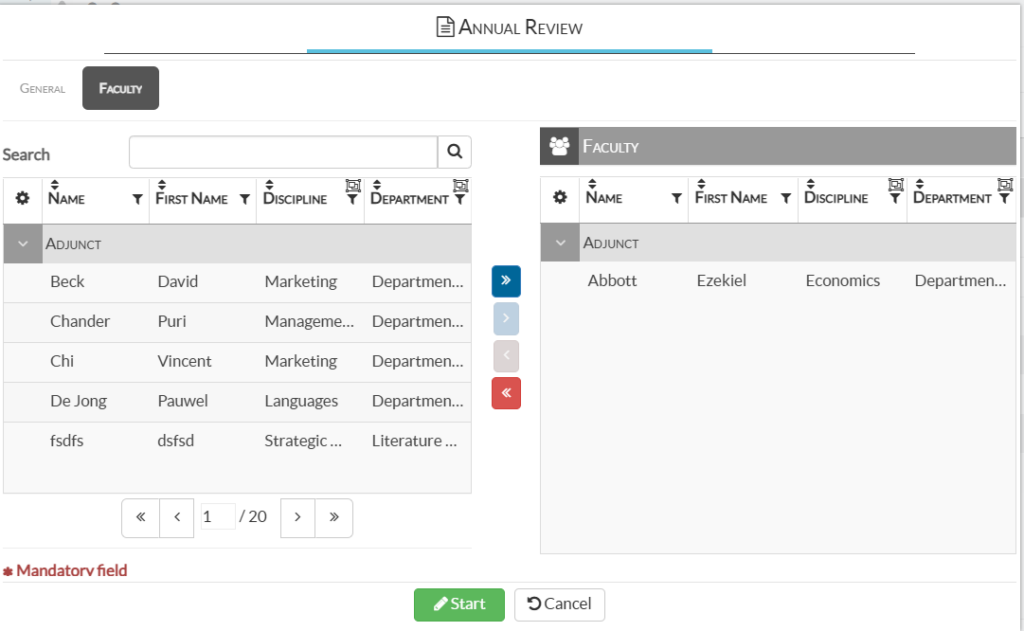
You can also choose to launch the evaluation for all faculty members in your database by using the double blue arrow.
The red arrows allow you to remove faculty members from the process before it is launched.
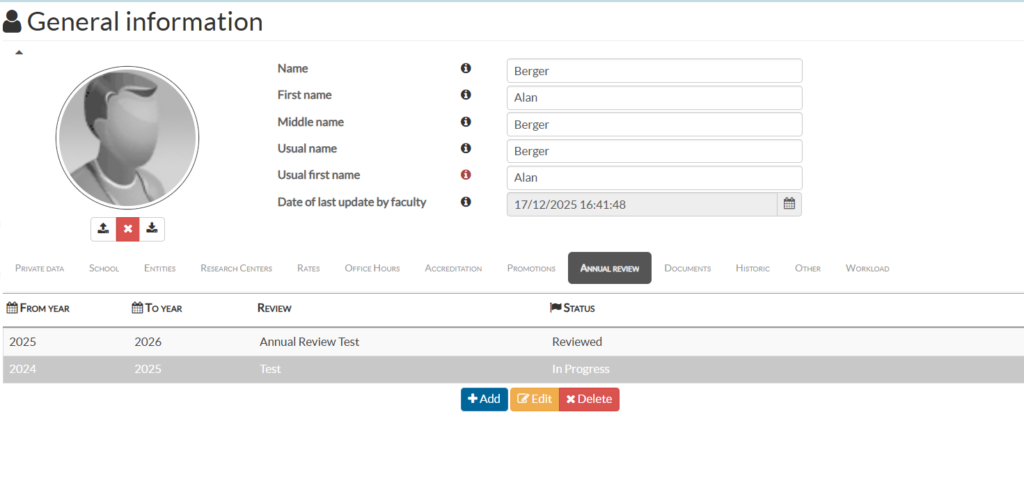
⚠️Once the process has been launched, evaluations are monitored individually: from the Annual Reviews list in the Reports menu for DA, and/or from the faculty roster.
After selecting the faculty members, click the green “Start” button to launch the process.
Faculty members will then receive the email configured at the START stage, informing them that the evaluation has begun.
By logging into their Academ space, they will be able to access and complete their evaluation report.
Monitoring Annual Reviews as a DA
Launched evaluations appear as lists in the Annual Review section, sorted by status:
- In Progress: Evaluations currently being edited by the faculty member.
When a report is in In Progress status, it cannot be generated, validated, or rejected by the Administration. - Reviewed: Validated evaluations.
Validated reports can be accessed in two ways:
– Individual access: Double-click on the report line in the list. In the window that opens, click the yellow “Generate” button at the bottom of the screen.
– Bulk access: Click the yellow “Generate” button at the bottom of the list. All validated evaluation reports will then be exported into a ZIP folder.
- Rejected: Rejected evaluations, to be modified by the faculty member.
When a report is rejected:
– It returns to editing mode on the faculty side.
– It can no longer be generated or accessed by the Administration until it is resubmitted.
Once the modifications have been made and the report resubmitted, it reappears in the Submitted list for review.
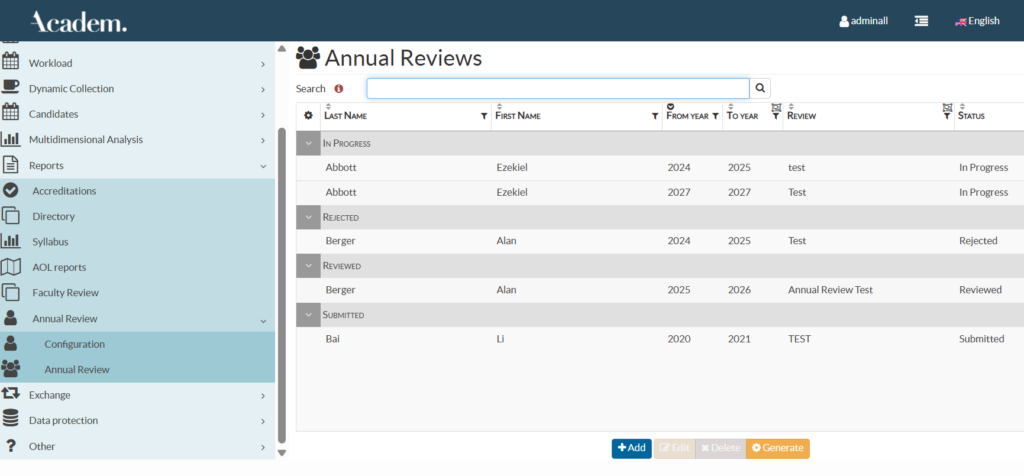
ℹ️ Lists can be expanded or collapsed using the arrows located to the left of each status, making them easier to read.
Launching and Monitoring Annual Reviews with a FAC Role
Launching an Annual Review by a Faculty Member (FAC)
Faculty members can initiate an Annual Review themselves from their Academ space: Personal Information menu > Annual Evaluation tab, then click “Add” at the bottom of the screen.
The add/edit window offers the same parameters as on the DA side in the General tab, except for the faculty selection, which is not required here.
Available tabs for faculty members:
- Comments: allows faculty members to add clarifications or additional information to highlight their work in specific sections of the report. Comments can be added once the evaluation has been launched.
- Attachments: upload documents before or during the evaluation process.
- History: track the evaluation steps.
Once the different parameters are completed, the faculty member clicks “Save.”
The review is launched, and the report is added to the Annual Review list with the status In Progress.
⚠️ No email is sent at this stage to inform managers of the report’s creation. The faculty member may cancel the review as long as the report has not been submitted.
To finalize the creation of the review report, the faculty member must click the “Save” button.
The add window closes automatically, and the report line appears in the faculty member’s report list.
The faculty member can then double-click the report, or select the report and click the “Edit” button, to complete and submit the Annual Review report.
Adding a Comment
⚠️Comments can only be added after the report has been created.
- Click on the Comments tab.
- Click the blue “Add” button.
- Enter:
- The comment title
- The date
- The relevant report section
- Write the comment, then confirm.
Once added, a comment can be edited or deleted if necessary.
After submission, the report can no longer be modified by the faculty member.
The responsible team is notified by email of the submission and can validate or reject the report.
Monitoring an Annual Review as a Faculty Member (FAC)
From their Academ account, faculty members can view and edit their Annual Review report via: Personal Information menu > Annual Review tab.
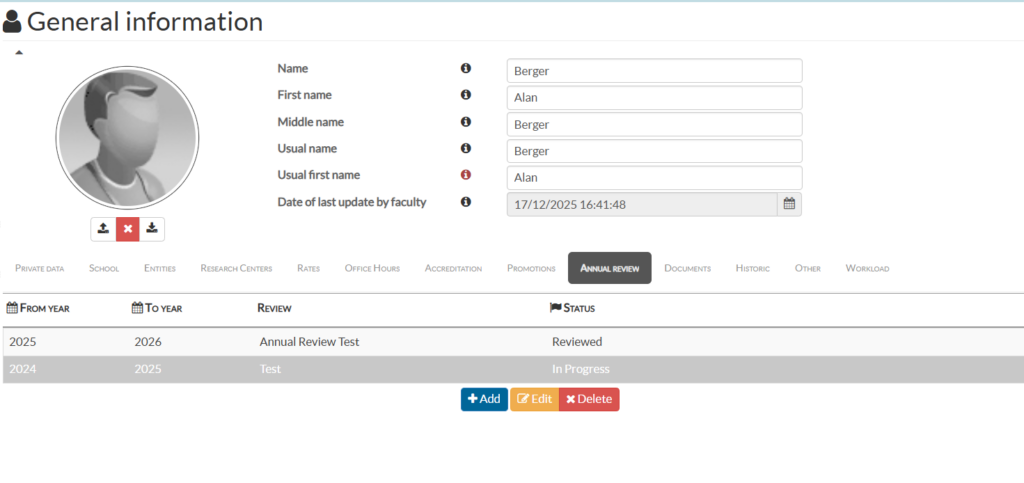
When a review is launched on the DA side (START), the report appears on the faculty side with the status In Progress.
- The faculty member can select the corresponding line to edit the report: add comments, attach documents, and then submit the evaluation to managers.
- After submission, the report status changes to Submitted.
- Once reviewed by managers, the report is either validated or rejected. The faculty member receives an email informing them of the outcome and, in case of rejection, may revise and resubmit the report.